Skip to content

Canva seating chart template alternative

A Canva template makes the sign look good. It does not decide who sits at table 4. Here is what each tool does, and how to use them together.

Checked 22 October 2026 on Canva’s wedding seating chart page, its templates page and its pricing page. We did not sign in to Canva or use its editor.

What Canva does well for a seating chart

Canva is a design tool, and for a seating sign that is the right strength. Its page offers a “Wedding Seating Chart” design type with ready-made templates, a drag-and-drop editor, a choice of over 130 free fonts and the option to upload your own images. For printing, it says to choose Download, then “PDF – Print”, for a 300-dpi copy, and it suggests a professional printing service for large charts. Its templates page lists many looks, with names such as “Black and White Minimalist Wedding Seating Chart” and “Gold and Green Elegant Wedding Seating Chart”. If you have a picture of the sign you want, a Canva template is the quickest way to get that look.

What a template cannot do

As Canva describes it, a seating chart there is a layout: boxes and text you move around. The page does not mention importing a guest list or putting guests at tables, so the seating itself is yours to do by hand, and to redo by hand. With 80 guests that means typing 80 names into boxes, checking by eye that nobody is listed twice, and finding the right box when a cousin drops out. A seating tool does the other half of the job: it makes a first plan from the list, keeps a family together, keeps two people apart, and counts the seats so a table is never over its number.
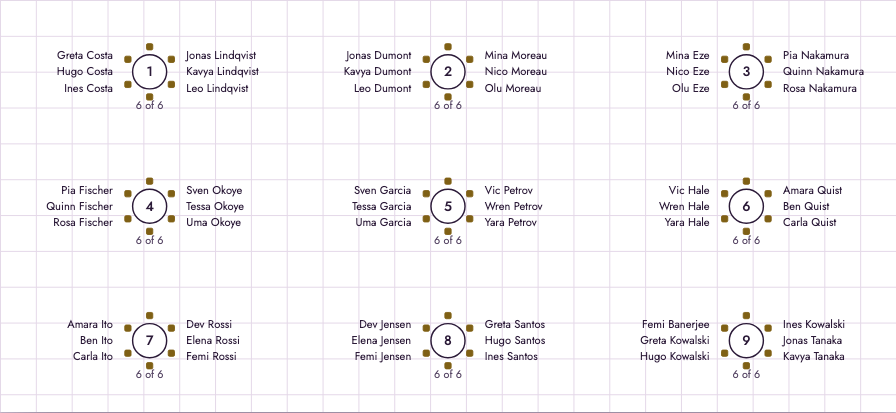

The floor plan view of the planner: nine round tables, each with six guests listed beside it and the label 6 of 6
The floor plan for 54 made-up guests at 9 tables of 6. “6 of 6” under each table is the planner counting seats; drag a table to where it stands in the room.

Seat first, design second

  1. Paste your list into the seating chart generator and press Seat guests. Move anyone who should sit elsewhere.
  2. Download the CSV, or open the Guests view, which lists every guest with their table. Both are plain text you can copy.
  3. Open your Canva template and put each table’s names in its text boxes.
  4. When a guest moves, change the chart here first, so the counts and the rules stay true, and then edit the one box in Canva.

If you do not need a particular design, skip step 3: the wedding seating chart sign page shows the poster the planner makes itself.

Canva and this planner side by side

Canva and this planner side by side
Canva (checked 22 October 2026)This planner
Main jobDesigning the signDeciding who sits where, then printing it
Guest listThe page does not mention importing onePaste or upload a CSV; household, tag and meal columns
Seating guestsYou place names by hand in the designOne click, then drag to change; rules for together and apart
Choice of designMany templates, 130+ free fonts (their page)Five styles on one poster layout; one style is free
Print filePDF – Print, 300 dpi (their page)PDF at 18 × 24 in free; 24 × 36 in, A2 and A1 with the Event Pass or the Planner
PriceA Free plan and paid plans; see their pricing pageFree with a small watermark line; paid: Event Pass (US$14.90, paid once, 90 days) or the Planner (US$12.90 a month)
AccountThe page shows Sign up and Log in buttonsNone

Which one to use

Use Canva when the look is the point and you have the time to place each name. Use this planner when the list is long, when it keeps changing, or when the hard part is who may sit with whom. If your list starts in a spreadsheet, the Excel template page shows how to set it up so it pastes straight in.

Try the seating chart generator

Frequently asked questions

Your guest list stays in this browser and is never uploaded.